Smarter Web Console
======================
Smarter includes a full-featured web console designed for administrators as well as AI resource authors.
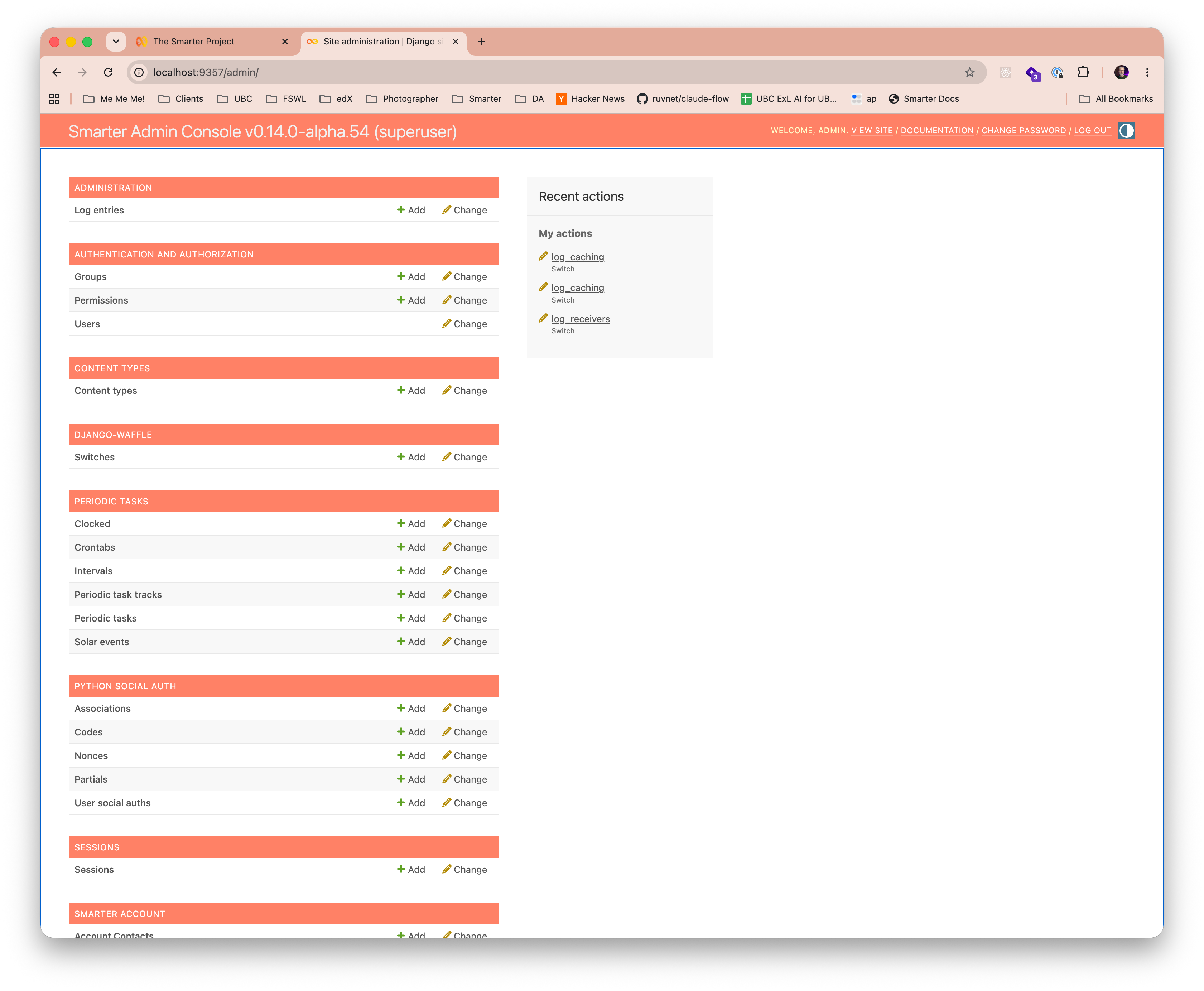
All users also gain role-based access to the `Django Admin Console `__.
AI Resource Authors
--------------------
Authors can prototype, test, and manage AI resources such as :doc:`prompts <../../../smarter-resources/smarter-prompt>`,
:doc:`llmclients <../../../smarter-resources/smarter-llmclient>`, and :doc:`plugins <../../../smarter-resources/smarter-llmtool>`
through the console's intuitive interface. The dashboard provides a comprehensive view of all AI resources,
including their relationships, dependencies and real-time state, enabling authors to efficiently
create and manage any Smarter AI resource from React-based UI pages.
The console additionally provides a Smarter manifest drop zone to facilitate an efficient
authoring workflow.
Sign-in Page
~~~~~~~~~~~~
Beside the sign-in form, a small illustration shows a Smarter LLMClient and the plugin, guardrail,
vectorstore and secret around it. On days worth celebrating, such as New Year's Day, Diwali, Pi Day,
World Teachers' Day or a national holiday, it is decorated for the day, with a caption that links to
a page about it. Visitors in different regions can see different decorations on the same day, by
their browser's time zone. The decorations are chosen, and some are drawn, by two Smarter AI
applications, LLMClients that the platform prompts itself, and the panel says so on those days. A
platform administrator approves what they draw, and can choose another decoration for a day, in the
Django admin, and turn the feature off with the ``enable_doodle`` waffle switch. See
:doc:`@smarter/doodle <../../../smarter-framework/developer-reference/react-integration/doodle>`.
Console Dashboard
~~~~~~~~~~~~~~~~~
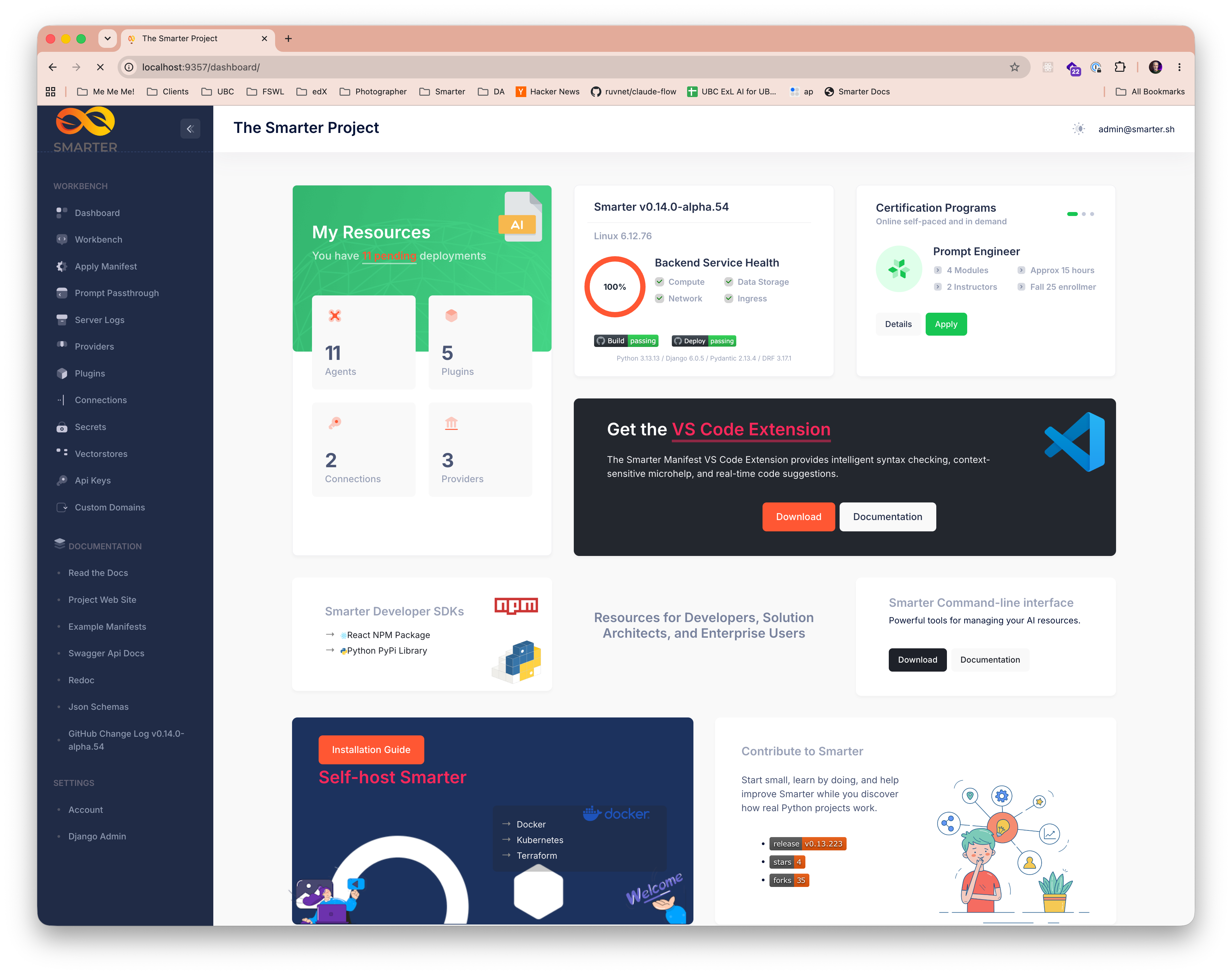
Provides a comprehensive overview of all AI resources, platform health, and recent activity. Service
health is checked live: the database, the cache, the Celery task broker and the Celery workers. Recent
activity lists your latest ``apply``, ``deploy``, ``undeploy`` and ``delete`` commands from the journal,
with failures highlighted. Budgets that are locked, or that have spent 80% or more of a limit, are
shown as alerts at the top of the dashboard, and new users see a getting started checklist until
they have created and deployed their first LLM Client. It also provides quick access to the complete
suite of The Smarter Project tools, resources, online tutorials, and documentation.
The dashboard's search box finds resources of every kind at once, among those that you may read. Type
text to find resources whose name or description contains it, or that have that tag;
``tag:production`` to find the resources tagged ``production``; or an
:ref:`annotation selector ` requirement, such as ``acme.com/crm-account-id=A-10042``
or ``!acme.com/archived``. The results are grouped by kind, a few of each, and each group links to its
list page, narrowed by the same search. A result opens the resource's detail, described below, in its
list page. A list page's address names the detail that is open, as ``?detail=`` and the resource's record
locator, so a detail can be bookmarked or shared too.
Below the console's title, on every page, a **Did you know?** note shows a fact of the day about The
Smarter Project, with a link to learn more. Everyone sees the same fact from midnight to midnight UTC.
A platform administrator can turn it off with the ``enable_web_console_did_you_know`` waffle switch.
See :doc:`@smarter/didyouknow <../../../smarter-framework/developer-reference/react-integration/didyouknow>`.
.. raw:: html
 User Menu
~~~~~~~~~
Your profile image, at the top right of every page, opens your user menu. It shows your name and
email, and lets you choose the console's language, change or remove your profile image, take the
welcome tour again, and sign out. If you belong to more than one account, for example as a student
who is enrolled in two courses at once, the menu also shows the account that the console is acting
as, and a **Change Profile** item. It lists your profiles, with each one's account number, account
name and the date that it was created, and **Switch** makes the console act as another one for the
rest of your session. Until you choose, the console acts as your newest profile.
See :doc:`@smarter/dashboard-user-menu <../../../smarter-framework/developer-reference/react-integration/dashboard-user-menu>`.
Languages
~~~~~~~~~
The console is shown in the language that you choose in the Language item of your user menu, which
it remembers in a cookie, or else in your browser's preferred language, when it is available. The
console is available in English, which is the default, Spanish (in Latin American Spanish), French
and Brazilian Portuguese. A browser that prefers any variant of Spanish, such as ``es-MX`` or
``es-AR``, gets Spanish, and one that prefers any variant of Portuguese gets Brazilian Portuguese.
The languages that a platform offers are those of its ``LANGUAGES`` setting, and the menu is shown
when there is more than one. Your resources, and their manifests, aren't translated.
See :doc:`../../../smarter-framework/developer-reference/translations` for how the console is translated,
and how to add a language.
AI Resource Lists
~~~~~~~~~~~~~~~~~~~~~
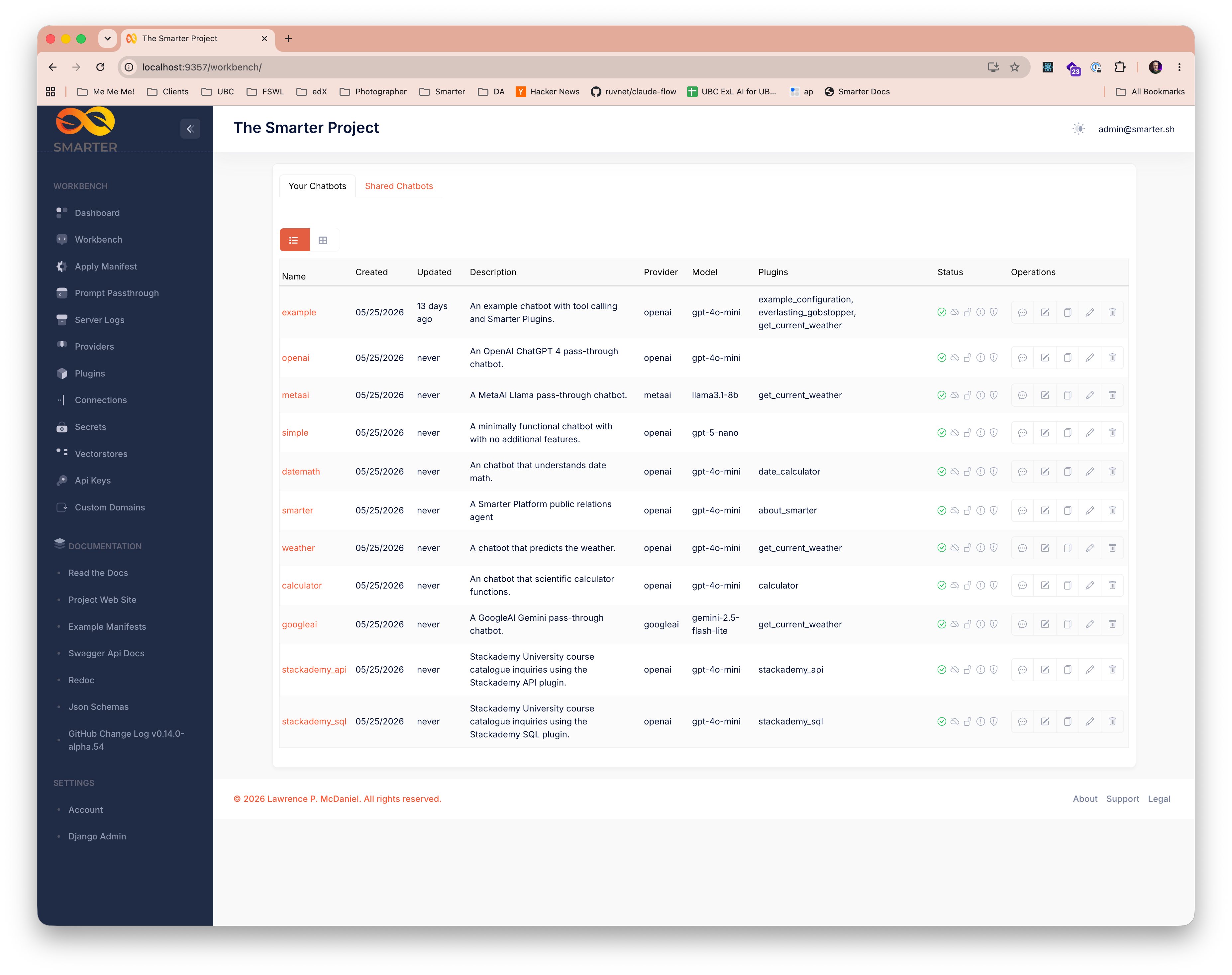
Every Smarter AI resource type has a dedicated list page that provides a comprehensive role-based view
of all resources of that type, along with their real-time state. Create, view, edit, clone, and delete
any resource directly from the console.
A platform operator can turn a resource type off, e.g. with ``SMARTER_APP_GUARDRAIL_ENABLE=false``. Its list
page, its sidebar link and its docs pages are then gone from the console, and the dashboard counts its
resources without linking to them. See :ref:`Turning resource types off `.
Choose a row, by clicking it or by pressing Enter on it, to open the resource's detail. Its tabs are:
- **Details**: the resource's settings, grouped into sections, with its owner, dates, tags and
annotations, and the same actions as its row.
- **Manifest**: the resource's manifest, as ``smarter describe`` returns it, which you can copy,
download, or open in the manifest editor to change it.
- **Hierarchy**: every resource that it uses, and what those use in turn, as a tree of cards, each of
which opens that resource's manifest.
- **Dependencies**: the resources that use it. A resource can't be deleted while others use it.
The detail's Previous and Next buttons, or the left and right arrow keys, move through the list, on
to the next or previous page, and keep the same tab open, so that two resources' manifests, say, can
be compared. Escape closes it.
A list can be searched, sorted by a column, and narrowed by tags and annotations. A resource's tags
and annotations are chips, in its row and in its detail: click one to show only the resources that
have the same tag, or the same annotation key and value. The annotation box next to the search box takes an
:ref:`annotation selector ` requirement: ``key``, ``!key``, ``key=value`` or
``key!=value``, added with Enter. Each tag and requirement narrows the list further, and shows as a
chip above it, which removes it when its button is clicked. They are kept in the page's address, as
``?tag=`` and ``?annotation=``, so a narrowed list can be bookmarked or shared.
.. raw:: html
 LLM Prompt Workbench
~~~~~~~~~~~~~~~~~~~~~
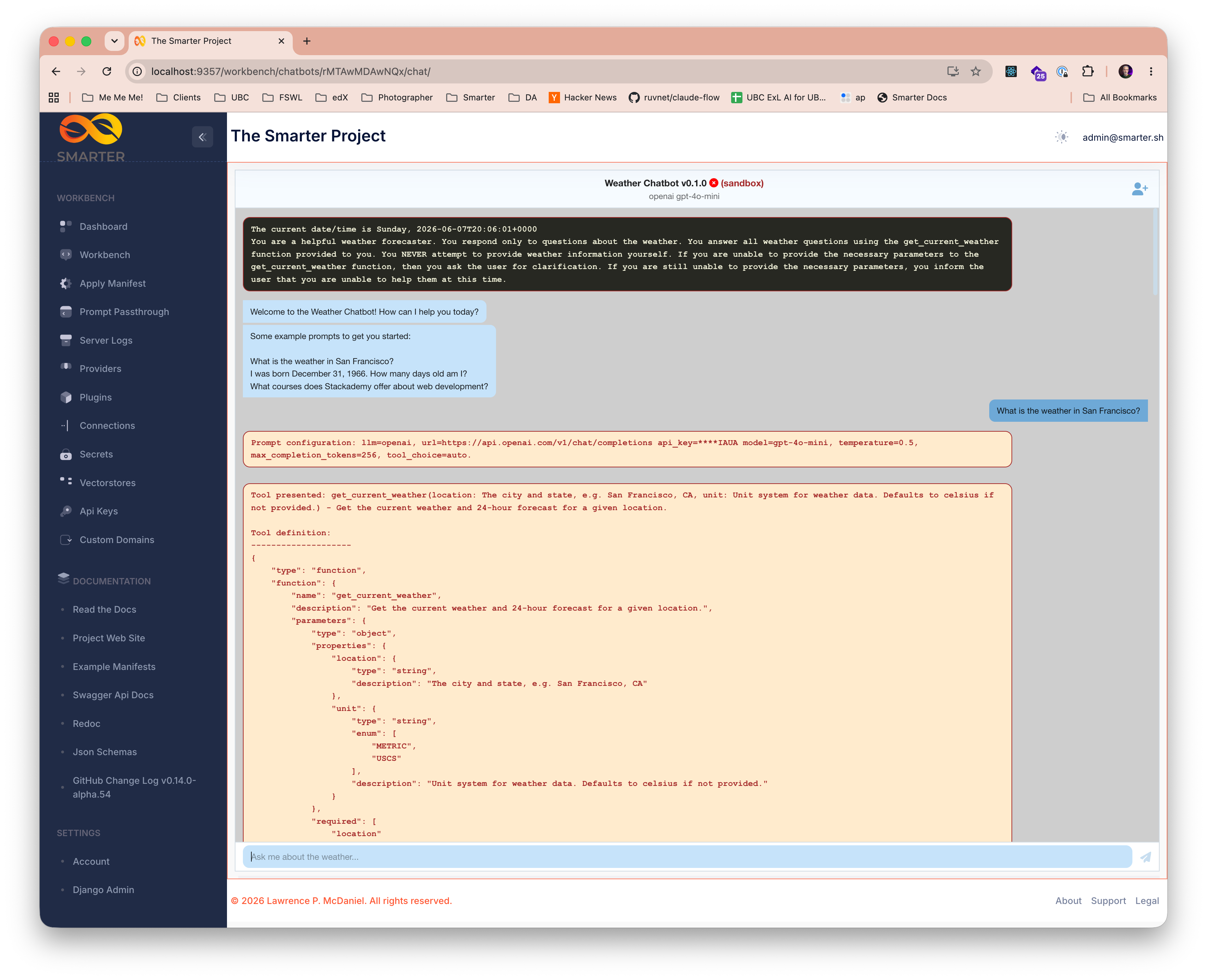
The web console includes a powerful prompt engineering workbench that gives authors a comprehensive view
of all prompts, including interim steps on multi-pass prompts, token usage, and raw LLM responses.
New users are guided there step by step. After the welcome tour, a sparkling spotlight on the sidebar's
**LLM Clients** link suggests where to start, then one on the Get Weather example LLMClient, and the
workbench itself opens with a guided tour of its chat and its Console, written for people who have never
programmed. Each hint shows until the user has acted on it once, on any device, and the workbench's
**Help** menu takes the tour again at any time. A platform administrator can turn the hints off with the
``enable_web_console_onboarding_hints`` waffle switch. See
:doc:`@smarter/onboarding <../../../smarter-framework/developer-reference/react-integration/onboarding>`.
.. raw:: html
 Apply Manifest
~~~~~~~~~~~~~~
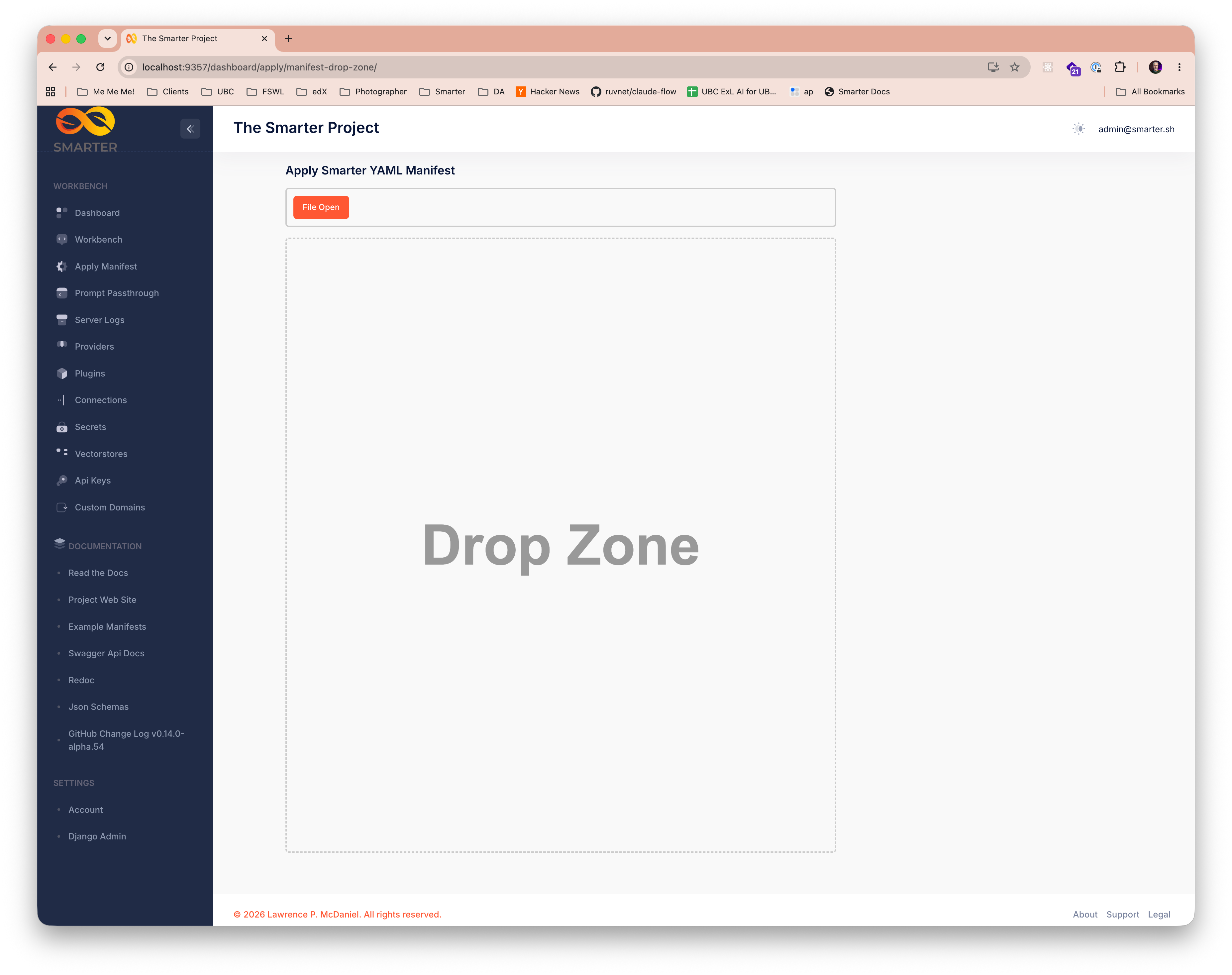
The console's Apply Manifest page is a manifest editor for any kind of resource. Paste or type a manifest, open
a file, drag one onto the page, or start from a kind's example. The editor checks the manifest as you type, marks
each problem with a detailed error message, and shows what each field is as you hover over it or move the cursor
to it, so that you can iterate quickly. Apply creates the manifest's resource, or updates it if it exists.
.. raw:: html
 LLM Provider API Passthrough Tool
~~~~~~~~~~~~~~~~~~~~~~~~~~~~~~~~~~
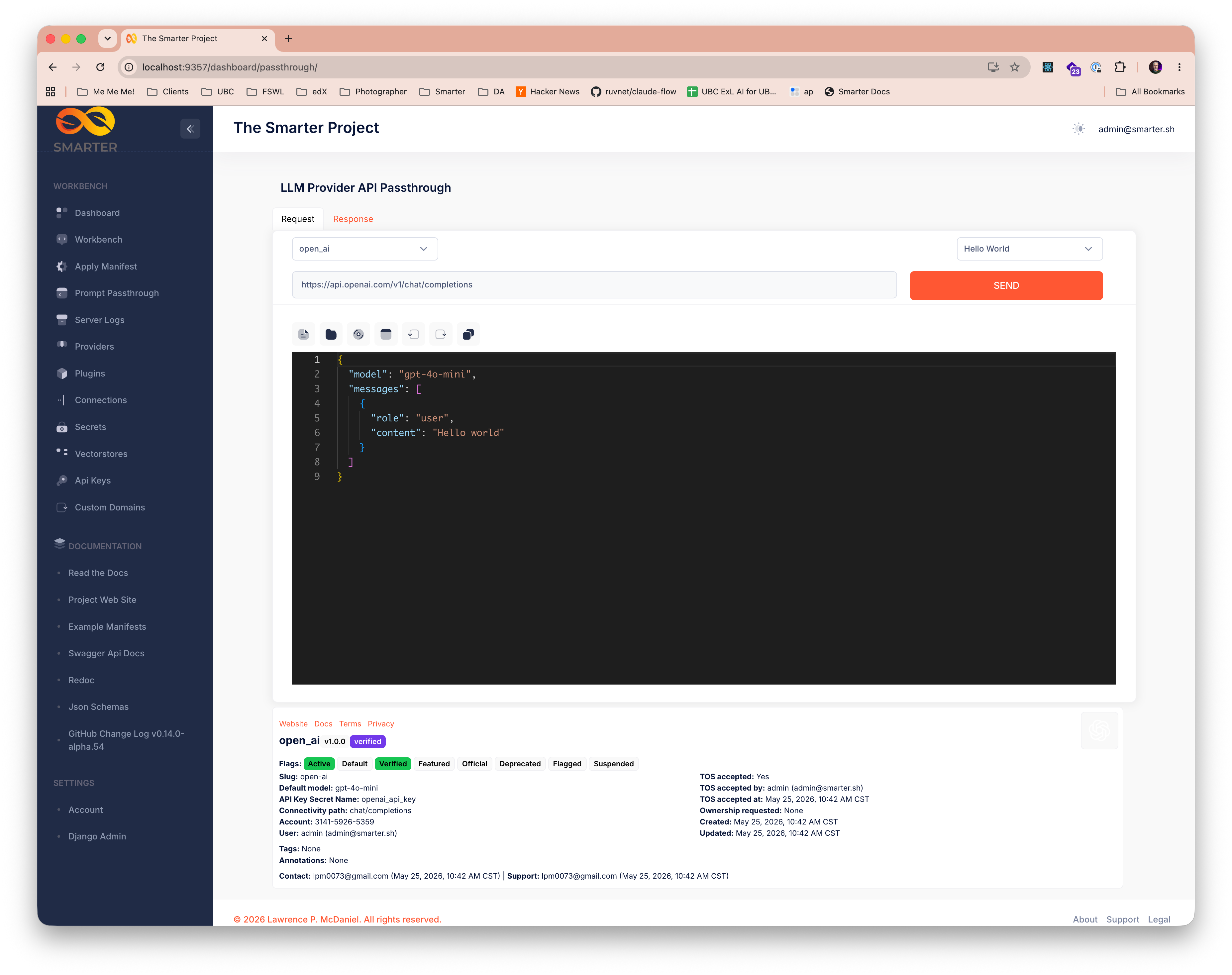
Authors can use the console's LLM Provider API Passthrough Tool to send raw requests directly to any
configured LLM provider API, with full control over request parameters and immediate visibility into
raw responses. This tool is ideal for early-stage prototyping, debugging complex multi-pass prompts,
and for evaluating new LLM providers.
.. raw:: html
 Live Server Logs
~~~~~~~~~~~~~~~~~~~~~
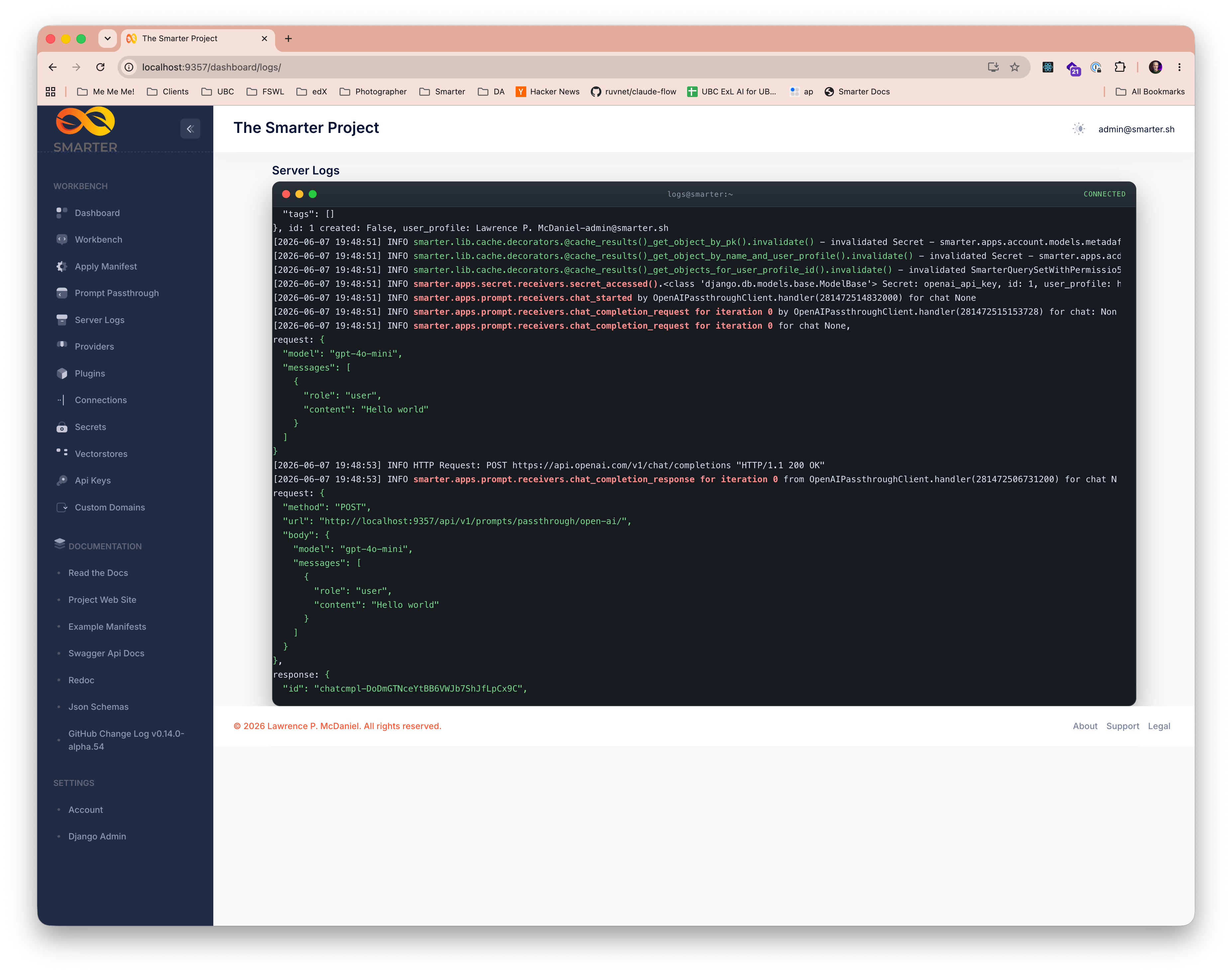
Authors have direct visibility into the live Linux application server logs of each prompt, with
filtering, to quickly identify relevant log entries. The Passthrough Tool's **Server Logs** tab, to
the right of its Request and Response tabs, streams the logs of the request that it sent last, and
only that request's logs: each request has its own id, in its ``X-Smarter-RequestId`` header, and
the platform tags every log record of the request with it. The workbench's Console has a Server Logs
tab too, with the user's logs of the chat. This feature is invaluable for debugging complex
multi-pass prompts, monitoring real-time system behavior, and gaining insights into platform
performance.
The two log viewers look and work the same. Long lines scroll horizontally, or wrap. The viewer
follows new records while it is scrolled to the bottom. Click the lines, then use the keyboard,
as in k9s or ``less``:
.. list-table::
:header-rows: 1
:widths: 40 60
* - Keys
- Action
* - :kbd:`Ctrl+↑`, :kbd:`Cmd+↑`, :kbd:`Home`, :kbd:`g`
- Top
* - :kbd:`Ctrl+↓`, :kbd:`Cmd+↓`, :kbd:`End`, :kbd:`G`
- Bottom, and follow new records
* - :kbd:`↑` :kbd:`↓`, :kbd:`k` :kbd:`j`
- Up or down a line
* - :kbd:`PgUp` :kbd:`PgDn`, :kbd:`Shift+Space` :kbd:`Space`, :kbd:`b` :kbd:`f`
- Up or down a page
* - :kbd:`←` :kbd:`→`, :kbd:`h` :kbd:`l`
- Scroll left or right
* - :kbd:`Ctrl+←` :kbd:`Ctrl+→`, :kbd:`0` :kbd:`$`
- Start of the lines, or end of the longest line
* - :kbd:`w`
- Wrap long lines, or scroll them
* - :kbd:`s`
- Follow new records, or stop
* - :kbd:`/`
- Filter the lines
* - :kbd:`c`
- Copy the lines
* - :kbd:`F`
- Full screen, or not
* - :kbd:`?`
- Show the shortcuts
* - :kbd:`Esc`
- Leave full screen, hide the shortcuts, or clear the filter
Browsers keep :kbd:`Ctrl+W` and :kbd:`Cmd+W` to close the tab, so wrap is :kbd:`w`, as in k9s. On
macOS, Mission Control keeps :kbd:`Ctrl+↑` and :kbd:`Ctrl+↓`: use :kbd:`Cmd+↑` and :kbd:`Cmd+↓`.
The server logs are viewable while ``SMARTER_APP_DASHBOARD_SERVER_LOGS_ENABLE`` is set and the
``enable_web_console_server_logs`` waffle switch is active.
.. raw:: html
 Complete REST API Reference
~~~~~~~~~~~~~~~~~~~~~~~~~~~~~~
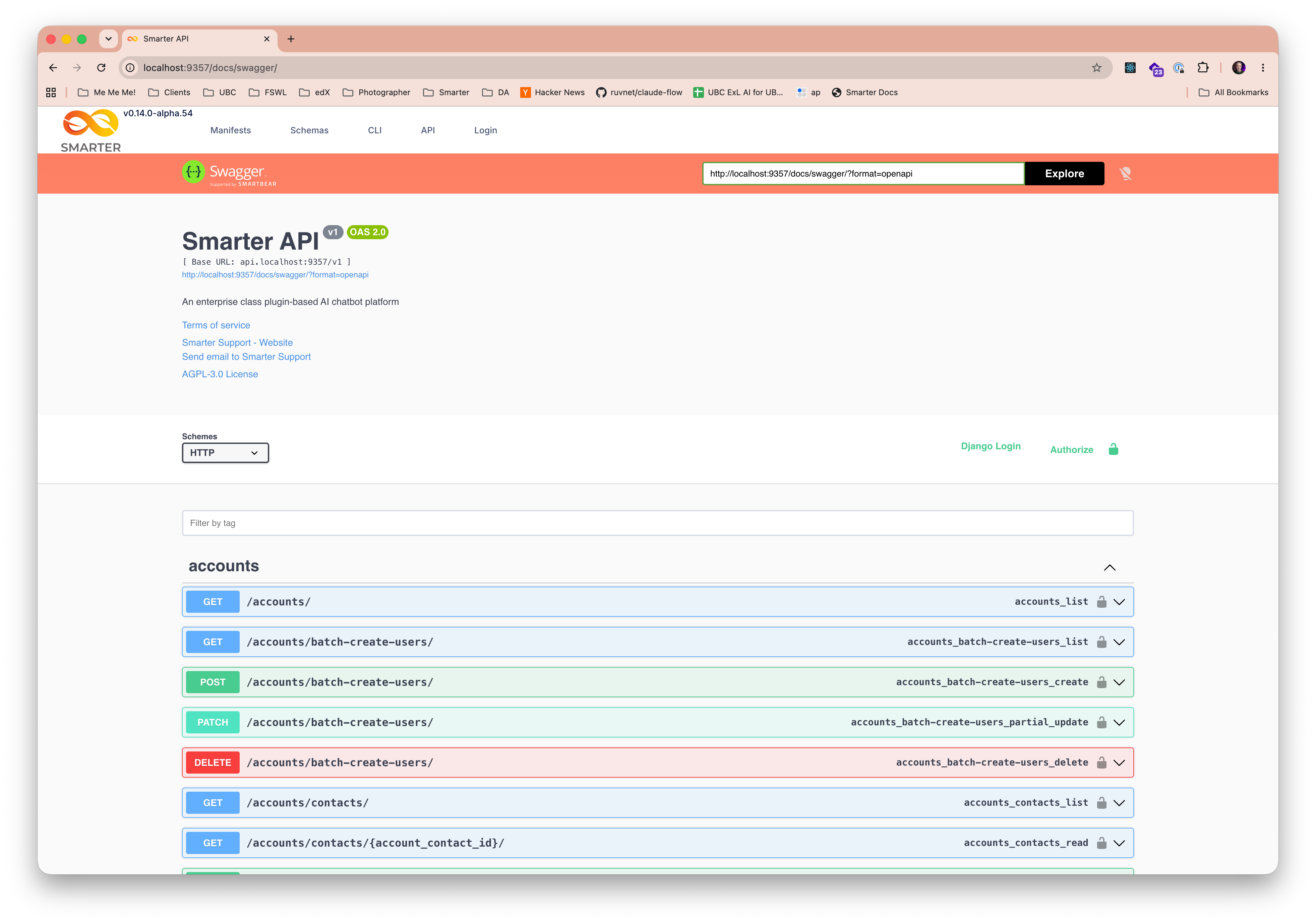
The official Smarter REST API reference is available directly from the console
as the *OpenAPI Contract*: the typed OpenAPI 3.1 document of the Smarter api, rendered with
Scalar, with its request and response schemas, code samples in several languages, and *Test
Request* against your platform. This resource is invaluable for
developers building custom integrations and extensibility resources that require
direct API interaction.
.. raw:: html
 Administrators
-------------------
Django Admin Console
~~~~~~~~~~~~~~~~~~~~~~~~~~~~~~
.. raw:: html
 Terminal
~~~~~~~~
The Terminal page, in the Workbench section of the sidebar, opens a bash shell inside the
platform's own server container, in an xterm.js terminal window, so that an instructor can show
a class the running platform from the inside: its files, its processes, its environment, and
commands such as ``python manage.py shell`` and ``curl``. It is a real terminal, on a pseudo
terminal, so job control, :kbd:`Ctrl+C`, tab completion and full screen programs such as ``vim``,
``less`` and ``top`` work as they do anywhere else.
The shell runs inside the server process that accepted the connection, which is one of the
platform's replicas, chosen by the load balancer. Two windows may open on two different pods. The
terminal says so when it starts, along with the pod's host name, and it warns that the session
can end suddenly:
- when the server restarts, or is redeployed or scaled down,
- when the connection drops, or the page is reloaded or closed,
- after 30 minutes without input, and after 8 hours in any case.
When a session ends, its shell, and everything that it started, is stopped, so the terminal is a
poor place for long-running processes. Files that it writes are in the container's file system,
and disappear when the container is replaced. Press :kbd:`Enter` to start a new session.
What the terminal showed is kept, though, in the browser tab: when the page is reloaded, or left
and opened again in the same tab, it redraws the screen and its scrollback, up to 5,000 lines, says
that the shell that drew them has ended, and starts a new session below. A full screen program's
screen, e.g. ``vim``'s, is not kept. The screen is kept in the tab's ``sessionStorage``, which the
browser clears when the tab is closed, because it can show credentials, e.g. the output of ``env``.
The shell runs as the server's operating system user, with the server's environment, and so with
every credential that the server has: the database's, the cloud provider's, and the LLM providers'
api keys. For that reason the Terminal is off unless ``SMARTER_APP_DASHBOARD_WEB_CONSOLE_TERMINAL_ENABLE`` is
set to ``true``, and even then only superusers see it, or can open it. The page asks the server
for a single use ticket, which is valid for a minute, and opens its WebSocket, ``/ws/terminal/``,
with it, so that another site's page cannot open a terminal with a superuser's session cookie.
Each session's start and end are logged, with its user, pod and shell, but what is typed is not,
since it can include passwords. See
:doc:`../../../smarter-framework/developer-reference/react-integration/terminal-application` for how it
is built.