Apply Manifest React Component
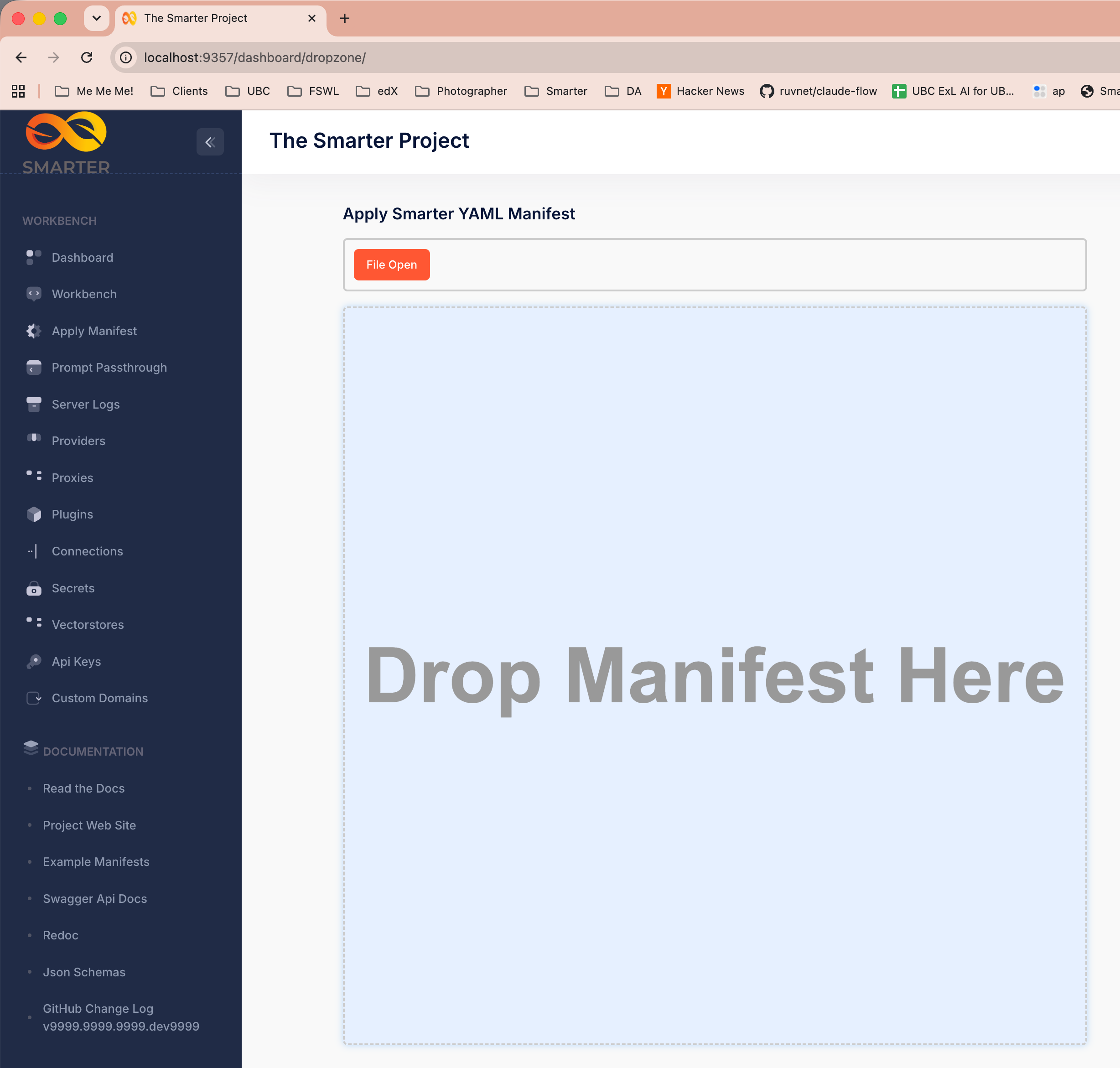
The Apply Manifest page is a web-console alternative to the Smarter CLI’s apply, and is especially useful
for users who are new to working with Smarter. It is a SAM manifest editor: paste or type any manifest, open
a YAML file, drag one onto the page, or start from a kind’s example manifest. As you type, it checks the YAML’s
syntax, the manifest’s apiVersion, kind and metadata.name, and then the manifest against its kind’s
SAM model, with the cli api’s validate command, and marks each problem in the editor. Hovering over a field,
or moving the cursor to it, shows what it is: its type, whether it is required, and its description, from its
kind’s JSON Schema (the cli api’s json-schema command). Apply sends the manifest to the cli api’s apply,
which creates its resource, or updates it if it exists.
The drop zone appears over the editor only while a file is dragged over the page; dropping the file there opens it in the editor, to check and apply. A manifest that would replace the editor’s text asks first.
The page is a page of the single-page console (ADR-035), at
/dashboard/dropzone/, while smarter_settings.app_dashboard_manifest_dropzone_enable is on. @smarter/console
renders @smarter/apply-manifest’s ApplyManifest inside its frame, with the session’s SAM kinds and the
public cli api’s urls. Its editor is @smarter/manifest-editor’s, the editor of each resource’s manifest page,
for a new manifest: its identifying fields aren’t locked, and it has no Clone or Delete. The package has no build
of its own; npm run dev in it renders the page against the Django dev server’s api. Django answers the path
with the console’s page, and keeps its url name. When the setting is off, the console’s session says so and the
console shows its Page not found.
Apply Manifest Component Technical Reference