Getting Started with Claude Code as a Coding Assistant
Goal
We will use Claude Code with Smarter to register an Anthropic provider, configure Claude models, and verify an end-to-end coding assistant workflow. This guide is written for developers who already have Smarter accounts and deployment access, and want a repeatable on-ramp for Claude-powered code generation and code reasoning.
Prerequisites
A working Smarter deployment accessible from your network.
A Smarter administrator account with CLI access and permission to apply manifests.
The Smarter CLI installed and authenticated with your deployment.
Access to the Anthropic Console and a valid Anthropic API key.
Familiarity with YAML, shell commands, and environment variable based configuration.
Basic knowledge of provider/model abstractions in Smarter and how Smarter uses manifests.
Note
This guide assumes you already know how to log in to Smarter and have an account provisioned. It does not cover account creation or general Smarter navigation.
Setup
Before you begin, make sure you are ready to complete the Claude Code integration:
A working Smarter deployment is running and accessible.
You have Smarter administrator access and CLI credentials.
The Smarter CLI is installed and authenticated with your deployment.
You can edit your deployment’s
.envfile and restart the running service.You have access to the Anthropic Console and can generate an API key.
You are comfortable authoring YAML provider manifests.
If you want a deeper reference for provider manifests, see How-To: Adding an LLM Provider to Smarter.
Step-by-Step
Step 1: Obtain an Anthropic API key
Open the Anthropic Console at https://console.anthropic.com/.
Create a new API key for the Smarter integration.
Copy the key immediately; Anthropic shows it only once.
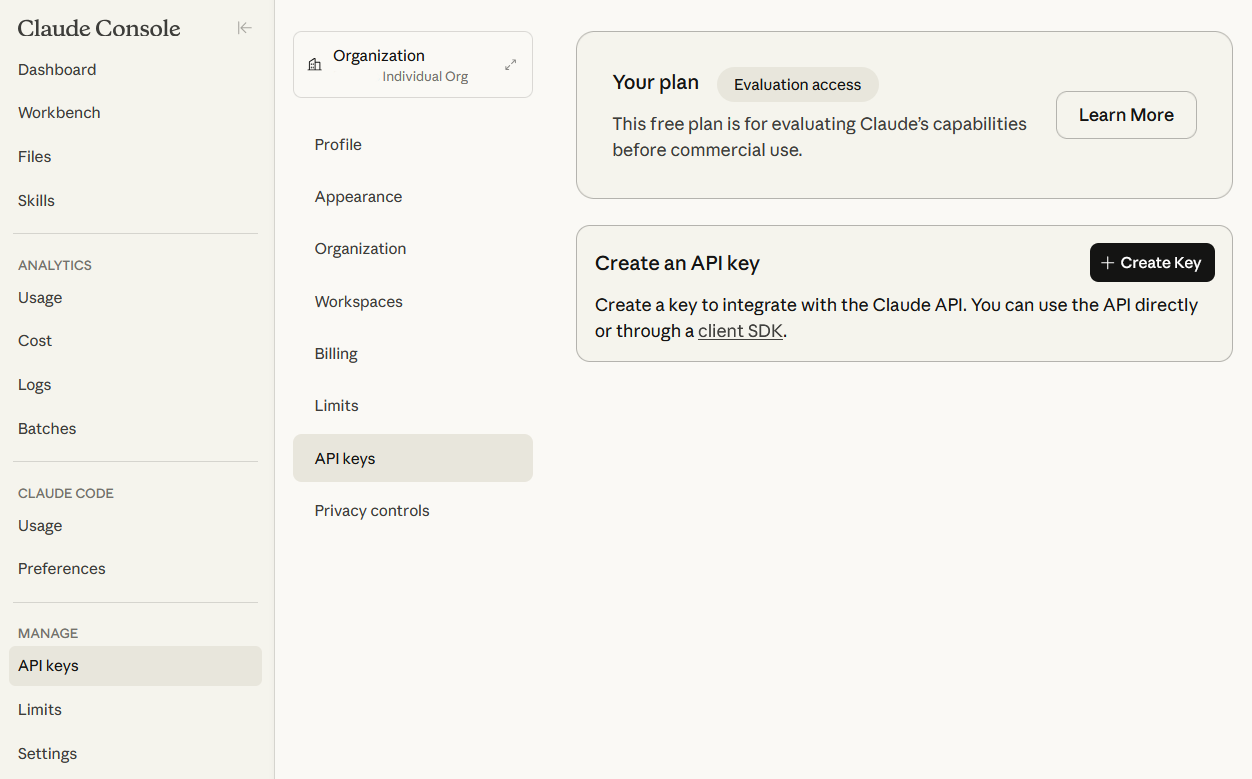
Create and copy the Anthropic API key.
Step 2: Add the key to Smarter
Open the Smarter deployment .env file and add the Anthropic key:
SMARTER_ANTHROPIC_API_KEY=sk-ant-xxxxxxxxxxxxxxxxxxxxxxxxxxxxxxxx
If you use a deployment helper, add the value there instead.
Caution
Never commit the Anthropic API key or any secret directly to source control.
Then restart Smarter so the environment variable is loaded. For local Docker-based deployments, use docker compose restart.
docker compose restart
Step 3: Create Claude provider manifests
Smarter uses YAML manifests to register resources. For Claude Code you should register each Anthropic model you want to use. The manifest format is the same for any additional provider.
Example: anthropic-opus.yaml
apiVersion: smarter.sh/v1
kind: Provider
metadata:
  name: anthropic-opus
  description: Anthropic Claude Opus 4 — high-capability coding assistant
  version: 1.0.0
spec:
  provider:
    name: anthropic
    model: claude-opus-4-5
Example: anthropic-sonnet.yaml
apiVersion: smarter.sh/v1
kind: Provider
metadata:
  name: anthropic-sonnet
  description: Anthropic Claude Sonnet 4 — balanced coding assistance
  version: 1.0.0
spec:
  provider:
    name: anthropic
    model: claude-sonnet-4-6
Note
The model identifier must match Anthropic’s published model names exactly.
Model names are case-sensitive.
Step 4: Apply the manifests
Execute the Smarter CLI to register the providers:
smarter apply -f anthropic-opus.yaml
smarter apply -f anthropic-sonnet.yaml
Smarter validates the manifests, registers the providers, and performs live verification checks against Anthropic.
Step 5: Verify provider registration
Confirm each provider is active:
smarter describe provider anthropic-opus
smarter describe provider anthropic-sonnet
Expected result includes a status section such as:
status:
  verified: true
  active: true
  last_verified: "2026-03-31T00:00:00Z"
If verification is pending, wait 30 seconds and re-run the command.
Step 6: Use Claude in Smarter
Once the provider is active, open the Smarter Workbench and select your Anthropic provider. The Workbench is the recommended place to interactively evaluate Claude Code as a coding assistant.
Prompt the model with a coding task.
Step 7: Installation Verification checklist
SMARTER_ANTHROPIC_API_KEYexists in.env.smarter applyexits without manifest errors.smarter describe provider anthropic-opusreturnsverified: true.The provider is visible in the Smarter console.
A Workbench session can generate a valid code snippet from a prompt.
Concept Overview
Smarter as the orchestration layer and Anthropic Claude as the computation engine. Smarter sends standardized requests, then routes results into llmclients, Workbench sessions, and downstream pipelines.
Smarter decomposes AI integration into two key concepts:
Provider: the external service that hosts the model and handles authentication.Provider model: the specific model identity and capabilities offered by that service.
A provider manifest connects these concepts in Smarter using a standard resource model. It is intentionally similar to Kubernetes manifests so the workflow is familiar to engineers.
Key runtime behavior
Smarter reads the Anthropic API key from
.env.The provider manifest declares which Anthropic model to use.
Smarter performs a verification request during registration.
After verification, the provider appears as available in the console and CLI.
Proof of Concept
The expected result of this walkthrough is a Claude Code provider that is registered, verified, and usable from the Smarter Workbench.
Concrete success criteria:
The Anthropic provider manifest is applied without manifest or validation errors.
smarter describe provider anthropic-opusreturnsverified: trueandactive: true.The provider is visible in the Smarter console under Providers.
The provider can be selected in the Workbench and responds to a developer prompt.
A sample coding prompt returns a valid code snippet, not an error message.
Example CLI verification output:
apiVersion: smarter.sh/v1
kind: Provider
metadata:
  name: anthropic-opus
  description: Anthropic Claude Opus 4 — high-capability coding assistant
  version: 1.0.0
spec:
  provider:
    name: anthropic
    model: claude-opus-4-5
status:
  verified: true
  active: true
  last_verified: "2026-03-31T00:00:00Z"
Example Workbench outcome:
Prompt:
Write a Python function that normalizes user profile dataResult: a complete Python function with comments and a small validation example
No authentication failures, no model-not-found errors, and no invalid provider status
If you can complete the steps above, the Claude Code integration is working and the guide’s objective has been met.
Troubleshooting
Problem: Provider does not appear in Smarter
Confirm the manifest was applied successfully.
Verify that the provider name in YAML is
anthropicand the model string is correct.Check
smarter describe provider <name>for details.
Problem: Verification failed
Verify
SMARTER_ANTHROPIC_API_KEYis present in.env.Restart Smarter after changing
.envusing your deployment workflow. The repository does not include amake restarttarget; for local Docker deployments usedocker compose restart.Confirm the API key is active and has not been revoked.
Ensure network access can reach
https://api.anthropic.com.
Problem: Manifest validation errors
Use
smarter manifest provideras a template.Ensure YAML indentation is correct.
Do not use tabs.
Problem: Workbench prompts do not produce code
Confirm the chosen provider is active in the console.
Use a more explicit prompt that frames the request as code generation.
Compare Opus and Sonnet models for quality vs latency.
Problem: Environment values not loading
Make sure the deployment is restarted after updating
.env.If Smarter runs in containers, inspect the container environment and restart the service.
For containerized setups, use
docker compose restartor your deployment-specific restart command.